Updating the FOS INI File
Please note: The following are general instructions used to configure the FOS.ini file. Please tailor your specific configuration accordingly. This is a needed step for self-hosted customers (Portside hosted customers will have this process performed for them automatically). This step applies to FOS version 3.16.0.1 and all future builds.
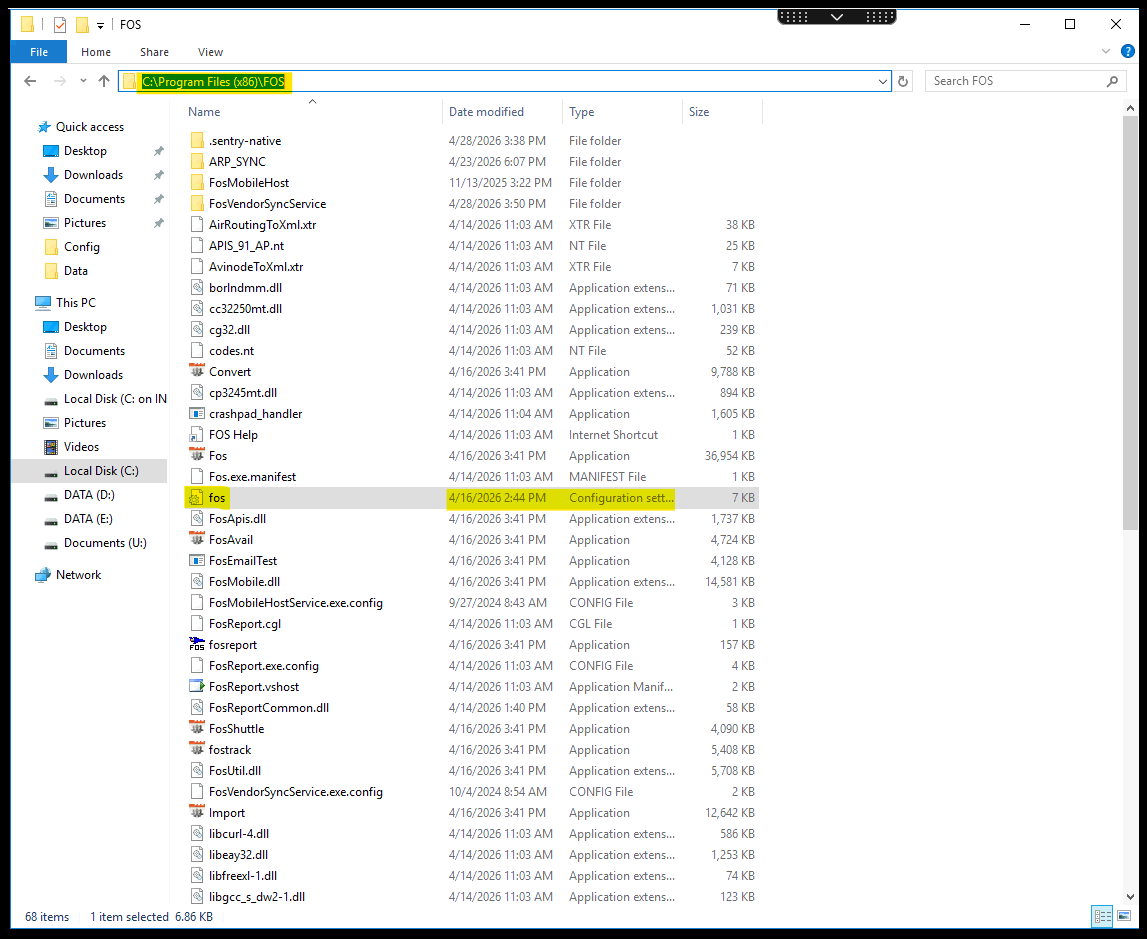
1. Navigate into your directory where you installed your FOS.exe files ( Default directory for this from the installer is the following - C:\Program Files (x86)\FOS )
2. Open your FOS.ini File
3. The below verbiage can be found in the FOS.ini file and should be amended to your local directories.
3. The below verbiage can be found in the FOS.ini file and should be amended to your local directories.
# Log File Folder
appLogDir=D:\Fos\ApplicationLogs
# FOS Debug Logs (controls SatCom Data, Report, and IMU debug logging)
# Valid values: yes (default) or no. Any value other than "no" enables logging.
# Change requires a FOS restart to take effect (value is cached at startup).
FOSDebugLogs=yes
# Arpsync settings
ArpSyncPath=D:\Fos\ARP_SYNC
# Enable/Disable Sentry integration (yes/no)
sentry_enabled=yes
# Enable debug logging (yes/no) - Creates sentry_debug.log in app directory
sentry_debug=no
Related Articles
Updating FOS
Updating Flight Operations System (FOS) (Only for FOS systems that are under a current support contract) Before running the FOS Installer, you will need to uninstall the FOS Vendor Alliance Program on the server. If your company has FOS Mobile, the ...Error: Cannot create file "C:\FOS\DATA\Picture\WxImagexxxxxx.gif" when Running the Interface Manger
Error: Cannot create file "C:\FOS\DATA\Picture\WxImagexxxxxx.gif" The process cannot access the file because it is being used by another process. This error occurs when updating the Flight Manager portion of the interface manager. Solution: The file ...Updating the FOS Mobile Host
Please note: The following are general instructions used to install the FOS Mobile Host. Please tailor your specific installation accordingly. FOS Mobile Host 1. Stop the existing FOS mobile host service. 2. Right click on the old back up config ...Updating the FosVendorSyncService config file
The FosVendorSyncService config file must be updated when there is an update to FOS. The configuration file will be included in the FOS Installer. Below are the steps to update the FosVendorSyncService config file. 1. Go to the directory where ...Updating the FOS Mobile Web Services
Please note: The following are general instructions used to install the FOS Mobile Host. Please tailor your specific installation accordingly. FOS Mobile Web Services 1. Right click on the old back up config file, open in wordpad and copy to the ...